Integrating Automated Accessibility Testing into Your CI/CD Pipeline
Learn how to catch accessibility issues early in development by integrating Axe-Core and Lighthouse into your continuous integration workflow. A practical guide with real-world examples.
As developers, we often treat accessibility as an afterthought—something to address just before launch or, worse, after users report issues. But what if I told you that catching accessibility problems early in your development cycle could save time, reduce costs, and create better user experiences from day one?
Today, I’ll walk you through setting up automated accessibility testing in your CI/CD pipeline using industry-standard tools like Axe-Core and Lighthouse. By the end of this post, you’ll have a robust system that catches accessibility issues before they reach production.
Why Automated Accessibility Testing Matters
Before diving into the technical implementation, let’s establish why this approach is crucial:
The Cost of Late Detection
- Development stage: Fixing an accessibility issue costs $1
- QA/Testing stage: Same issue costs $10 to fix
- Production stage: That same issue now costs $100+ to remediate
The Reality Check
According to the WebAIM Million study, 97.4% of home pages have detectable WCAG failures. The average page has 50+ accessibility errors. Manual testing alone simply can’t catch everything at scale.
Setting Up Axe-Core in Your Pipeline
Axe-Core is the gold standard for automated accessibility testing. Here’s how to integrate it into different environments:
For React Applications
// jest-axe.test.js
import { render } from '@testing-library/react';
import { axe, toHaveNoViolations } from 'jest-axe';
import YourComponent from './YourComponent';

expect.extend(toHaveNoViolations);

test('should not have any accessibility violations', async () => {
  const { container } = render(<YourComponent />);
  const results = await axe(container);
  expect(results).toHaveNoViolations();
});
For End-to-End Testing with Playwright
// accessibility.spec.js
import { test, expect } from '@playwright/test';
import AxeBuilder from '@axe-core/playwright';

test('should not have any automatically detectable accessibility issues', async ({ page }) => {
  await page.goto('/your-page');

  const accessibilityScanResults = await new AxeBuilder({ page }).analyze();

  expect(accessibilityScanResults.violations).toEqual([]);
});
Lighthouse CI Integration
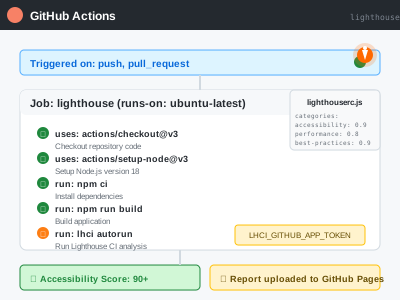
Lighthouse provides broader performance and accessibility metrics. Here’s how to set up Lighthouse CI:
GitHub Actions Configuration
# .github/workflows/lighthouse.yml
name: Lighthouse CI
on: [push, pull_request]

jobs:
  lighthouse:
    runs-on: ubuntu-latest
    steps:
      - uses: actions/checkout@v3

      - name: Use Node.js
        uses: actions/setup-node@v3
        with:
          node-version: '18'

      - name: Install dependencies
        run: npm ci

      - name: Build application
        run: npm run build

      - name: Run Lighthouse CI
        run: |
          npm install -g @lhci/cli@0.12.x
          lhci autorun
        env:
          LHCI_GITHUB_APP_TOKEN: ${{ secrets.LHCI_GITHUB_APP_TOKEN }}
Lighthouse CI Configuration
// lighthouserc.js
module.exports = {
  ci: {
    collect: {
      url: ['http://localhost:3000'],
      startServerCommand: 'npm start',
    },
    assert: {
      assertions: {
        'categories:accessibility': ['warn', { minScore: 0.9 }],
        'categories:best-practices': ['warn', { minScore: 0.9 }],
        'categories:performance': ['warn', { minScore: 0.8 }],
        'categories:seo': ['warn', { minScore: 0.9 }],
      },
    },
    upload: {
      target: 'github-pages',
    },
  },
};
Advanced Configuration: Custom Rules
Sometimes you need to test for specific accessibility patterns in your application:
// custom-axe-rules.js
export const customRules = {
  'custom-focus-visible': {
    impact: 'serious',
    tags: ['wcag2a', 'wcag241'],
    evaluate: function (node) {
      const hasVisibleFocus = window.getComputedStyle(node, ':focus-visible').outline !== 'none';
      return hasVisibleFocus;
    },
  },
};

// In your test
import { configureAxe } from 'jest-axe';
import { customRules } from './custom-axe-rules';

const axe = configureAxe({
  rules: customRules,
});
Creating Meaningful Reports
Raw accessibility violations can be overwhelming. Here’s how to create actionable reports:
Custom Reporter for CI
// accessibility-reporter.js
class AccessibilityReporter {
  constructor() {
    this.violations = [];
  }

  addViolation(violation) {
    this.violations.push({
      rule: violation.id,
      description: violation.description,
      impact: violation.impact,
      nodes: violation.nodes.map(node => ({
        target: node.target[0],
        html: node.html,
        failureSummary: node.failureSummary,
      })),
    });
  }

  generateReport() {
    if (this.violations.length === 0) {
      return '✅ No accessibility violations found!';
    }

    let report = `❌ Found ${this.violations.length} accessibility violations:\n\n`;

    this.violations.forEach((violation, index) => {
      report += `${index + 1}. ${violation.rule} (${violation.impact})\n`;
      report += `   ${violation.description}\n`;
      violation.nodes.forEach(node => {
        report += `   🎯 ${node.target}\n`;
      });
      report += '\n';
    });

    return report;
  }
}
Best Practices for Implementation
1. Start Small, Scale Gradually
Don’t try to implement perfect accessibility testing overnight:
- Week 1: Add basic Axe-Core tests to critical user flows
- Week 2: Integrate Lighthouse CI for key pages
- Week 3: Add custom rules for your specific patterns
- Week 4: Fine-tune thresholds and expand coverage
2. Set Realistic Thresholds
// Start with achievable scores and improve over time
const accessibilityThresholds = {
  development: 0.7, // Allow some violations during development
  staging: 0.85, // Stricter requirements before production
  production: 0.95, // Near-perfect scores for live site
};
3. Combine Automated and Manual Testing
Automated tools catch approximately 30-40% of accessibility issues, though this varies significantly based on tool configuration, page complexity, and testing scope. Always complement with:
- Screen reader testing
- Keyboard navigation testing
- Color contrast verification
- Focus management validation
Note: Detection rates can range from 20-60% depending on your specific implementation, content types, and accessibility maturity. Complex interactive components typically require more manual validation.
Monitoring in Production
Don’t stop at deployment. Monitor accessibility in production:
// production-accessibility-monitor.js
import { axeCore } from '@axe-core/react';

if (process.env.NODE_ENV === 'production') {
  axeCore(React, ReactDOM, 1000, {
    rules: {
      'color-contrast': { enabled: true },
      'keyboard-navigation': { enabled: true },
    },
  });
}
Measuring Success
Track these metrics to demonstrate the value of your accessibility automation:
- Violation reduction rate: Month-over-month decrease in accessibility issues
- Time to resolution: How quickly issues are fixed after detection
- User satisfaction scores: Accessibility improvements impact user experience
- Compliance audit results: Formal accessibility audits show improvement
Common Pitfalls to Avoid
1. Over-Reliance on Automation
Automated tools are powerful but not comprehensive. They can’t test:
- Logical focus order
- Meaningful content structure
- Complex interaction patterns
- Context-specific accessibility needs
2. Ignoring False Positives
Some violations flagged by tools may not be actual accessibility issues in your context. Create exceptions thoughtfully:
// axe-exceptions.js
export const knownExceptions = {
  'color-contrast': [
    {
      selector: '.logo',
      reason: 'Brand colors meet AA standards when viewed in context',
    },
  ],
};
3. Setting Unrealistic Standards
Perfect accessibility scores aren’t always achievable or necessary. Focus on:
- Critical user journeys first
- High-impact violations
- Progressive improvement over time
Next Steps
Implementing automated accessibility testing is just the beginning. Here’s what to tackle next:
- Establish accessibility design system guidelines
- Train your team on accessibility best practices
- Create accessibility user stories and acceptance criteria
- Implement accessibility performance budgets
- Set up user testing with assistive technology users
Resources for Further Learning
- Axe-Core Documentation
- Lighthouse CI Documentation
- Web Content Accessibility Guidelines (WCAG) 2.1
- A11y Project Checklist
Conclusion
Automated accessibility testing isn’t a silver bullet, but it’s a powerful tool in creating inclusive digital experiences. By catching issues early, you save time, reduce costs, and most importantly, ensure your applications work for everyone from day one.
The initial setup requires investment, but the long-term benefits—both for your users and your development team—make it essential for any modern web application.
Start small, be consistent, and remember: accessibility is not a destination, it’s a journey. Every step you take towards more inclusive development makes the web better for everyone.
What’s your experience with automated accessibility testing? Have you found other tools or approaches that work well in your workflow? I’d love to hear about your successes and challenges in the comments below.