Accessibility Automation Guidelines: What to Automate vs. What Requires Human Testing
A practical priority matrix for accessibility testing automation. Learn which WCAG checks to automate first, which require manual testing, and how to balance both in your CI/CD pipeline.
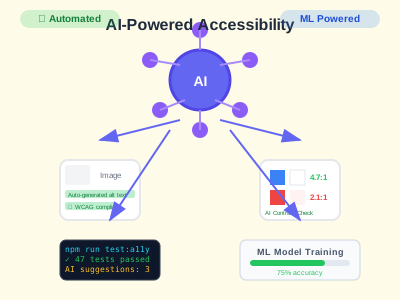
One of the most common questions I get after my “Inclusive by Default” talks is: “Which accessibility checks should we automate first?”
The answer isn’t “automate everything”—and it’s definitely not “accessibility can’t be automated.” The truth is strategic: some checks are perfect for automation, others require human judgment, and knowing the difference will save you time while improving your coverage.
This guide provides a practical priority matrix for accessibility testing automation, helping you decide what to automate in your CI/CD pipeline versus what needs manual testing or user research.
The Automation Reality Check
Let’s start with an honest assessment:
Automated tools can catch approximately 30-40% of accessibility issues.
That sounds low, but here’s the key insight: that 30-40% includes the most common, most easily fixable issues—the low-hanging fruit that creates the foundation for accessibility.
The remaining 60-70% requires human judgment: Is this alt text meaningful? Is this navigation order logical? Does this interaction pattern make sense?
The Priority Matrix
I’ve organized accessibility checks into four quadrants based on two factors:
- Automation reliability (Can a tool reliably detect this?)
- Impact (How critical is this for users?)
Quadrant 1: Automate First (High Reliability + High Impact)
These checks are reliable, impactful, and should run on every build.
| Check | WCAG Criterion | Why Automate |
|---|---|---|
| Missing accessible names | 4.1.2 | 100% detectable—element either has a name or doesn’t |
| Missing form labels | 1.3.1, 3.3.2 | Programmatically determinable |
| Color contrast ratios | 1.4.3 | Mathematical calculation |
| Invalid ARIA attributes | 4.1.2 | Validatable against spec |
| Duplicate IDs | 4.1.1 | Simple DOM check |
| Missing language attribute | 3.1.1 | Presence check on <html> |
| Missing page titles | 2.4.2 | Presence check on <title> |
| Broken ARIA references | 4.1.2 | ID existence validation |
Implementation:
# conftest.py - Run these on EVERY test
import pytest
from axe_selenium_python import Axe

@pytest.fixture(autouse=True)
def check_critical_accessibility(driver, request):
    """Automatically check critical accessibility on every test."""
    yield  # Run the test first

    # Only check on page-level tests (not API tests, etc.)
    if hasattr(request, 'param') and request.param.get('skip_a11y'):
        return

    axe = Axe(driver)
    axe.inject()

    # Check only the most reliable, high-impact rules
    results = axe.run(options={
        'runOnly': {
            'type': 'rule',
            'values': [
                'label',           # Form labels
                'button-name',     # Button accessible names
                'link-name',       # Link accessible names
                'image-alt',       # Image alt text presence
                'color-contrast',  # Color contrast
                'aria-valid-attr', # Valid ARIA attributes
                'duplicate-id',    # Duplicate IDs
                'html-has-lang',   # Language attribute
                'document-title',  # Page title
            ]
        }
    })

    violations = results['violations']
    if violations:
        # Fail the test with clear details
        violation_summary = "\n".join([
            f"- {v['id']}: {v['description']} ({len(v['nodes'])} instances)"
            for v in violations
        ])
        pytest.fail(
            f"Critical accessibility violations found:\n{violation_summary}"
        )
Quadrant 2: Automate with Caution (Medium Reliability + High Impact)
These can be automated but produce false positives. Use them for flagging, not failing builds.
| Check | WCAG Criterion | Challenge |
|---|---|---|
| Heading hierarchy | 1.3.1 | Tool detects skipped levels, but some designs legitimately skip |
| Link purpose | 2.4.4 | Tool detects “click here,” but context matters |
| Focus order | 2.4.3 | Tool can trace order, but logic requires judgment |
| Keyboard traps | 2.1.2 | Detection is possible, but false positives in modals |
| Autocomplete attributes | 1.3.5 | Tool can check presence, but appropriateness varies |
Implementation:
# helpers/cautious_checks.py

def check_heading_hierarchy(driver) -> dict:
    """
    Check heading hierarchy - flags issues but explains context.

    Returns warnings, not failures, because skipped headings
    may be intentional in some designs.
    """
    script = """
    const headings = document.querySelectorAll('h1, h2, h3, h4, h5, h6');
    const levels = Array.from(headings).map(h => parseInt(h.tagName[1]));

    const issues = [];
    let prevLevel = 0;

    levels.forEach((level, index) => {
        // Check for skipped levels (h1 -> h3 without h2)
        if (level > prevLevel + 1 && prevLevel !== 0) {
            issues.push({
                type: 'skipped_level',
                from: prevLevel,
                to: level,
                element: headings[index].outerHTML.substring(0, 100),
                message: `Heading level skipped from h${prevLevel} to h${level}`
            });
        }
        prevLevel = level;
    });

    // Check for multiple h1s (usually wrong, but not always)
    const h1Count = levels.filter(l => l === 1).length;
    if (h1Count > 1) {
        issues.push({
            type: 'multiple_h1',
            count: h1Count,
            message: `Found ${h1Count} h1 elements (typically should be 1)`
        });
    }

    // Check for no h1 at all
    if (h1Count === 0) {
        issues.push({
            type: 'no_h1',
            message: 'No h1 element found on page'
        });
    }

    return {
        headings: levels,
        issues: issues,
        recommendation: issues.length > 0
            ? 'Review heading structure manually'
            : 'Heading structure appears correct'
    };
    """
    return driver.execute_script(script)


def warn_on_heading_issues(driver):
    """
    Issue warnings (not failures) for heading structure issues.

    Use in CI to flag for review without blocking deployment.
    """
    results = check_heading_hierarchy(driver)

    if results['issues']:
        import warnings
        for issue in results['issues']:
            warnings.warn(
                f"Accessibility Review Needed: {issue['message']}",
                UserWarning
            )

    return results
Quadrant 3: Manual Testing Required (Low Reliability + High Impact)
These are critical but cannot be reliably automated. Schedule regular manual reviews.
| Check | WCAG Criterion | Why Manual |
|---|---|---|
| Meaningful alt text | 1.1.1 | Tool checks presence, not meaning |
| Logical reading order | 1.3.2 | Requires understanding content |
| Consistent navigation | 3.2.3 | Requires cross-page comparison |
| Error identification | 3.3.1 | Requires understanding context |
| Input purpose | 1.3.5 | Requires understanding field purpose |
| Resize/reflow | 1.4.4, 1.4.10 | Requires visual inspection |
| Motion/animation safety | 2.3.1, 2.3.3 | Requires content understanding |
Implementation Strategy:
## Manual Accessibility Testing Checklist

### Before Each Release

Run through these checks on key user journeys:

#### Alt Text Quality (WCAG 1.1.1)

- [ ] Do images have alt text that describes their purpose?
- [ ] Are decorative images marked with `alt=""`?
- [ ] Do complex images have extended descriptions?

#### Reading Order (WCAG 1.3.2)

- [ ] Does content make sense when CSS is disabled?
- [ ] Is the DOM order logical for screen readers?
- [ ] Do modals/overlays announce in correct sequence?

#### Error Messages (WCAG 3.3.1)

- [ ] Are errors clearly described?
- [ ] Is it clear how to fix each error?
- [ ] Are errors associated with their fields?

#### Cognitive Load

- [ ] Is navigation consistent across pages?
- [ ] Are instructions clear and not overwhelming?
- [ ] Can users easily recover from mistakes?
Quadrant 4: User Research Required (Low Reliability + Variable Impact)
These require testing with actual users who have disabilities.
| Check | WCAG Criterion | Why User Testing |
|---|---|---|
| Screen reader experience | Multiple | Real-world usage patterns |
| Cognitive accessibility | 3.1.x, 3.3.x | User understanding varies |
| Motor accessibility | 2.1.x | Individual needs vary |
| Assistive technology compatibility | 4.1.x | AT behavior varies |
Implementation Strategy:
## User Testing Program

### Quarterly User Testing Sessions

Partner with users who rely on:

- Screen readers (JAWS, NVDA, VoiceOver)
- Voice control (Dragon, Voice Control)
- Switch devices
- Screen magnification

### Key Questions

1. Can you complete the core user journey?
2. Where did you encounter friction?
3. What was confusing or unclear?
4. What worked well?

### Metrics to Track

- Task completion rate
- Time to complete tasks
- Error rate
- Satisfaction score
- Qualitative feedback themes
Building Your Automation Pipeline
Here’s how to structure your CI/CD pipeline with these quadrants in mind:
Stage 1: Build-Time Checks (Blocking)
# .github/workflows/accessibility.yml

name: Accessibility CI

on: [push, pull_request]

jobs:
  accessibility-gate:
    runs-on: ubuntu-latest
    steps:
      - uses: actions/checkout@v4

      - name: Install dependencies
        run: npm ci

      - name: Run critical accessibility tests
        run: npm run test:a11y:critical
        # These tests FAIL the build:
        # - Missing form labels
        # - Missing button/link names
        # - Color contrast below 4.5:1
        # - Invalid ARIA
        # - Duplicate IDs

      - name: Run cautious accessibility checks
        run: npm run test:a11y:review
        continue-on-error: true # Don't fail, but report
        # These tests WARN but don't fail:
        # - Heading hierarchy
        # - Link text quality
        # - Focus order suggestions
Stage 2: Pre-Release Checks (Warning)
accessibility-review:
  runs-on: ubuntu-latest
  if: github.ref == 'refs/heads/main'
  steps:
    - name: Generate accessibility report
      run: npm run test:a11y:full

    - name: Upload report
      uses: actions/upload-artifact@v3
      with:
        name: accessibility-report
        path: reports/accessibility/

    - name: Comment on PR with findings
      uses: actions/github-script@v6
      with:
        script: |
          const report = require('./reports/accessibility/summary.json');
          const comment = `## Accessibility Review Required

          **Automated findings:** ${report.violations} issues
          **Manual review items:** ${report.reviewItems} items

          Please review the [full report](${report.reportUrl}) before release.`;

          github.rest.issues.createComment({
            issue_number: context.issue.number,
            owner: context.repo.owner,
            repo: context.repo.repo,
            body: comment
          });
Stage 3: Scheduled Comprehensive Audits
weekly-audit:
  runs-on: ubuntu-latest
  if: github.event_name == 'schedule'
  steps:
    - name: Run full Lighthouse audit
      run: npx lhci autorun

    - name: Run axe comprehensive scan
      run: npm run test:a11y:comprehensive

    - name: Run Pa11y on all pages
      run: npm run test:pa11y:sitemap

    - name: Create tracking issue
      if: failure()
      uses: actions/github-script@v6
      with:
        script: |
          github.rest.issues.create({
            owner: context.repo.owner,
            repo: context.repo.repo,
            title: 'Weekly Accessibility Audit - Issues Found',
            body: 'See attached report for details.',
            labels: ['accessibility', 'automated-audit']
          });
The Decision Framework
When deciding what to automate, ask these questions:
1. Can the check be expressed as a binary pass/fail?
- ✅ “Does this button have an accessible name?” → Automate
- ❌ “Is this alt text meaningful?” → Manual
2. Is the check consistent across contexts?
- ✅ “Is color contrast at least 4.5:1?” → Automate
- ❌ “Is this navigation order logical?” → Manual (context-dependent)
3. What’s the false positive rate?
- < 5% false positives → Automate as blocking
- 5-20% false positives → Automate as warning
-
20% false positives → Manual review only
4. What’s the cost of missing it?
- Legal/compliance risk → Automate what you can, manual review the rest
- User experience impact → Prioritize based on user journey importance
Recommended Tool Stack
Based on my experience, here’s the tool combination that gives the best coverage:
| Tool | Best For | Use In |
|---|---|---|
| axe-core | Comprehensive rule set, low false positives | CI/CD blocking |
| Lighthouse | Performance + accessibility combined | Weekly audits |
| Pa11y | Page-level scanning, sitemap crawling | Scheduled audits |
| WAVE | Visual feedback during development | Developer tooling |
| IBM Equal Access | Enterprise compliance reporting | Quarterly audits |
Integration Example
# test_comprehensive_accessibility.py

import pytest
from axe_selenium_python import Axe
from pa11y import Pa11y
import subprocess
import json


class TestComprehensiveAccessibility:
    """
    Comprehensive accessibility test suite.

    Run weekly or before major releases.
    """

    def test_axe_full_scan(self, driver):
        """Run full axe-core scan with all rules."""
        driver.get("https://yoursite.com")

        axe = Axe(driver)
        axe.inject()
        results = axe.run()

        # Separate critical from moderate issues
        critical = [v for v in results['violations']
                   if v['impact'] in ['critical', 'serious']]
        moderate = [v for v in results['violations']
                   if v['impact'] in ['moderate', 'minor']]

        # Fail on critical, warn on moderate
        if critical:
            pytest.fail(f"Critical accessibility issues: {len(critical)}")

        if moderate:
            pytest.warns(f"Moderate accessibility issues: {len(moderate)}")

    def test_lighthouse_accessibility_score(self, driver):
        """Check Lighthouse accessibility score meets threshold."""
        result = subprocess.run([
            'lighthouse',
            'https://yoursite.com',
            '--output=json',
            '--only-categories=accessibility'
        ], capture_output=True, text=True)

        report = json.loads(result.stdout)
        score = report['categories']['accessibility']['score'] * 100

        assert score >= 90, f"Lighthouse accessibility score {score} below 90"

    def test_pa11y_pages(self):
        """Run Pa11y on key pages."""
        pages = [
            'https://yoursite.com/',
            'https://yoursite.com/login',
            'https://yoursite.com/checkout',
            'https://yoursite.com/contact'
        ]

        for page in pages:
            result = subprocess.run([
                'pa11y', page, '--reporter', 'json'
            ], capture_output=True, text=True)

            issues = json.loads(result.stdout)
            errors = [i for i in issues if i['type'] == 'error']

            assert len(errors) == 0, f"Pa11y errors on {page}: {len(errors)}"
Summary: Your Accessibility Automation Strategy
- Automate the fundamentals (Quadrant 1) - Run on every build
- Flag the uncertain (Quadrant 2) - Warn but don’t block
- Schedule manual reviews (Quadrant 3) - Before each release
- Invest in user testing (Quadrant 4) - Quarterly minimum
The goal isn’t 100% automation—it’s efficient coverage that catches the detectable issues automatically while reserving human attention for what truly requires human judgment.
Resources
- axe-core Rule Descriptions
- WCAG 2.1 Quick Reference
- Accessibility Testing Tools Comparison
- Deque University - Testing Guidelines
This article is part of my “Inclusive by Default” series on building accessibility into test automation. For the technical implementation of accessibility helpers, see Building Accessibility into Your Selenium Test Automation.